

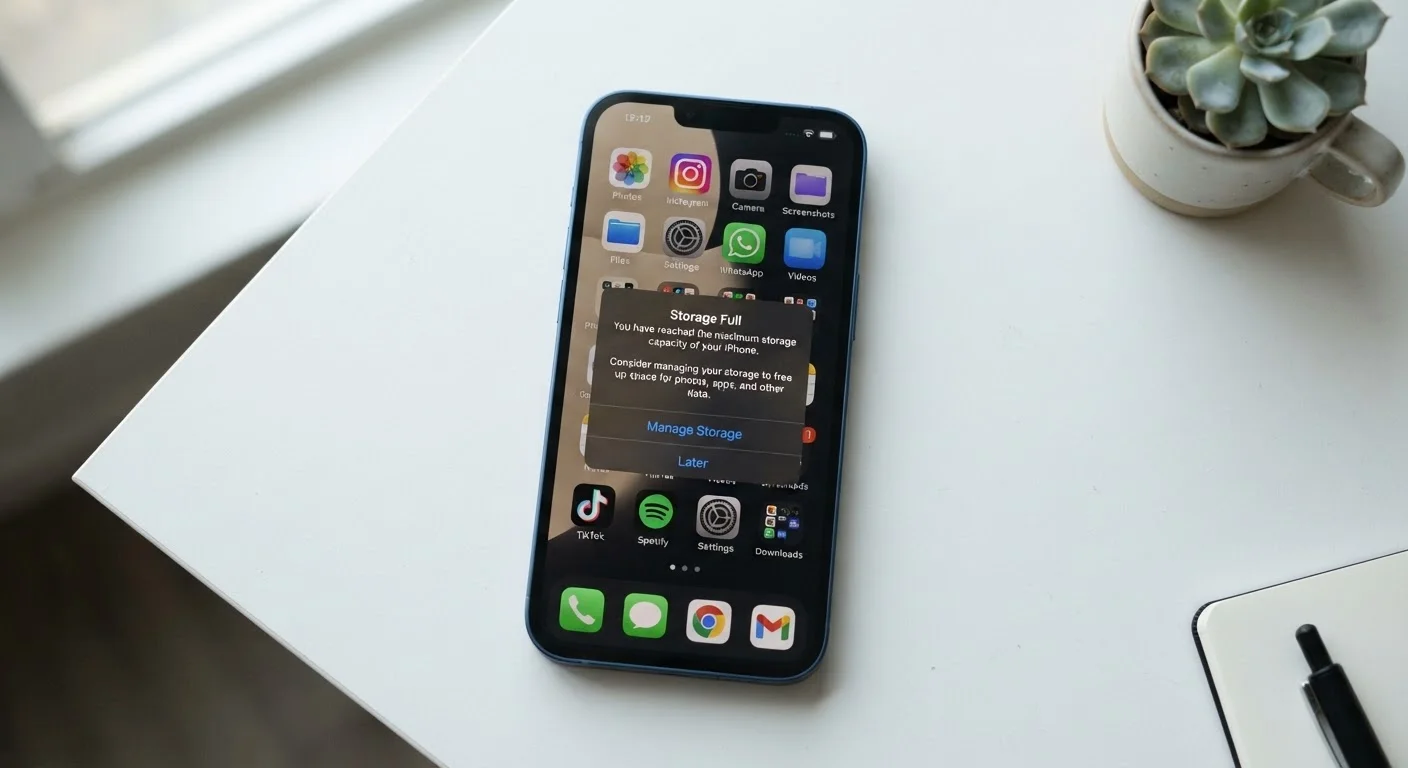
What's Actually Taking Up All That Space
When you buy a phone advertised as having 128GB of storage, you never actually start with 128GB to use. The operating system - iOS or Android - occupies anywhere from 10GB to 20GB right out of the box. Pre-installed apps, called bloatware, chip away at another slice before you've downloaded a single thing.
Beyond the system overhead, the biggest culprits eating your remaining space are usually:
- Photos and videos - Modern smartphone cameras shoot in high resolution. A single minute of 4K video can exceed 400MB.
- Apps and their data - An app's install size is just the starting point. Games especially accumulate gigabytes of downloaded content over time.
- Cached files - Apps routinely store temporary data to speed up future sessions. Streaming apps like music and video players can quietly hoard gigabytes of offline content.
- Duplicate files and old downloads - Screenshots, forwarded images from messaging apps, and files downloaded from email pile up invisibly in the background.
Understanding what lives where is the first step. For a deeper look at how content splits between your device and online services, see our guide on cloud storage versus local storage.
~15%
Free space needed for smooth phone operation
General guidance from mobile OS documentation suggests maintaining at least 10-15% free storage to avoid performance degradation.
10-20GB
Typical space consumed by the OS alone
Both iOS and Android operating systems claim a significant portion of advertised storage before users install a single app or capture a single photo.
400MB+
Storage used per minute of 4K video
High-resolution video is one of the fastest ways to fill a phone; a short vacation can consume dozens of gigabytes without noticeable individual file sizes.
Why a Full Phone Starts Acting Strange
Storage capacity affects performance in ways that aren't immediately obvious. Your phone's operating system constantly reads and writes small amounts of data as part of normal operation - logging activity, saving app states, processing photos after you take them. To do all of this, it needs breathing room: a buffer of free space that acts as a scratchpad.
When available storage drops below roughly 10-15% of total capacity, that buffer disappears. The result is a chain reaction: apps take longer to open, the camera hesitates before saving shots, software updates fail to download, and the phone may feel generally unresponsive. In some cases, apps crash because they can't write temporary files they need to function.
This is a separate issue from RAM - the memory your phone uses for active tasks. Storage, RAM, and processors all affect your experience differently, and understanding the distinction helps you diagnose slowdowns more accurately.
Check Storage Before You're In Crisis
Both iOS and Android have built-in storage management screens that break down usage by category - apps, photos, system, and other. Reviewing this periodically (Settings > General > iPhone Storage on iOS, or Settings > Storage on Android) takes less than a minute and gives you an early warning before the 'Storage Full' message appears.
What's Safe to Delete - and What to Leave Alone
Not everything taking up space is equally expendable. Before deleting anything, it helps to know the risk level involved.
Lower risk to delete:
- App cache - Temporary files that will rebuild automatically. Clearing cache is harmless.
- Downloads folder - PDFs, documents, and images downloaded from browsers or email often sit unused for months.
- Duplicate photos - Many phones create duplicates when editing; some camera apps save both the original and edited version.
- Unused apps - Apps you haven't opened in months occupy space continuously, even if you're not actively using them.
Use more caution with:
- Offline content from streaming apps - Deleting downloaded music or podcasts means re-downloading later, but no personal data is lost.
- App data (not just the app) - Clearing app data - distinct from cache - can reset the app to a fresh state, erasing saved preferences or login sessions.
Keep in mind that deleting an app doesn't always remove every trace of your data. Our explainer on what happens to your data when you delete an app covers what actually gets removed and what may linger.
For a broader approach to reclaiming space, digital clutter quietly drains more than just storage - it affects battery life and overall device performance too.
Frequently Asked Questions
Your phone's operating system needs a buffer of free space to write temporary files, complete updates, and run apps smoothly. When storage dips below roughly 10-15%, the system can't perform these background tasks efficiently, causing noticeable lag and sluggishness.
Yes, clearing cached data is generally safe. Cache files are temporary data stored by apps to speed up future loads. Clearing them frees storage without deleting your personal content, though apps may take slightly longer to load the next time you open them.
The operating system itself - iOS or Android - consumes several gigabytes of your device's total capacity. Manufacturers also measure storage in decimal gigabytes, while devices report in binary, which accounts for additional apparent discrepancy. What's advertised and what's usable are always different numbers.
Usually yes, but not always completely. Deleting an app removes its core files, but some data - like saved game progress or account preferences - may linger on the device or in the cloud. Our related guide explains exactly what happens to your data when you delete an app.
It can, but only if your photos app is set to keep lower-resolution 'device optimized' copies locally rather than full originals. Simply backing up photos to a cloud service doesn't automatically remove the originals from your phone - you typically need to enable an 'optimize storage' setting.
It depends on your device. Some Android phones support expandable storage via a microSD card slot, allowing you to add more space. iPhones and many modern Android flagships do not have this option, making cloud storage or offloading files to a computer the primary alternatives.
The content on this site is provided for informational purposes only and should not be considered a substitute for professional advice. While we strive to provide accurate and up-to-date information, we make no guarantees regarding its completeness or accuracy. Always consult a qualified professional for advice specific to your circumstances before making any decisions.