

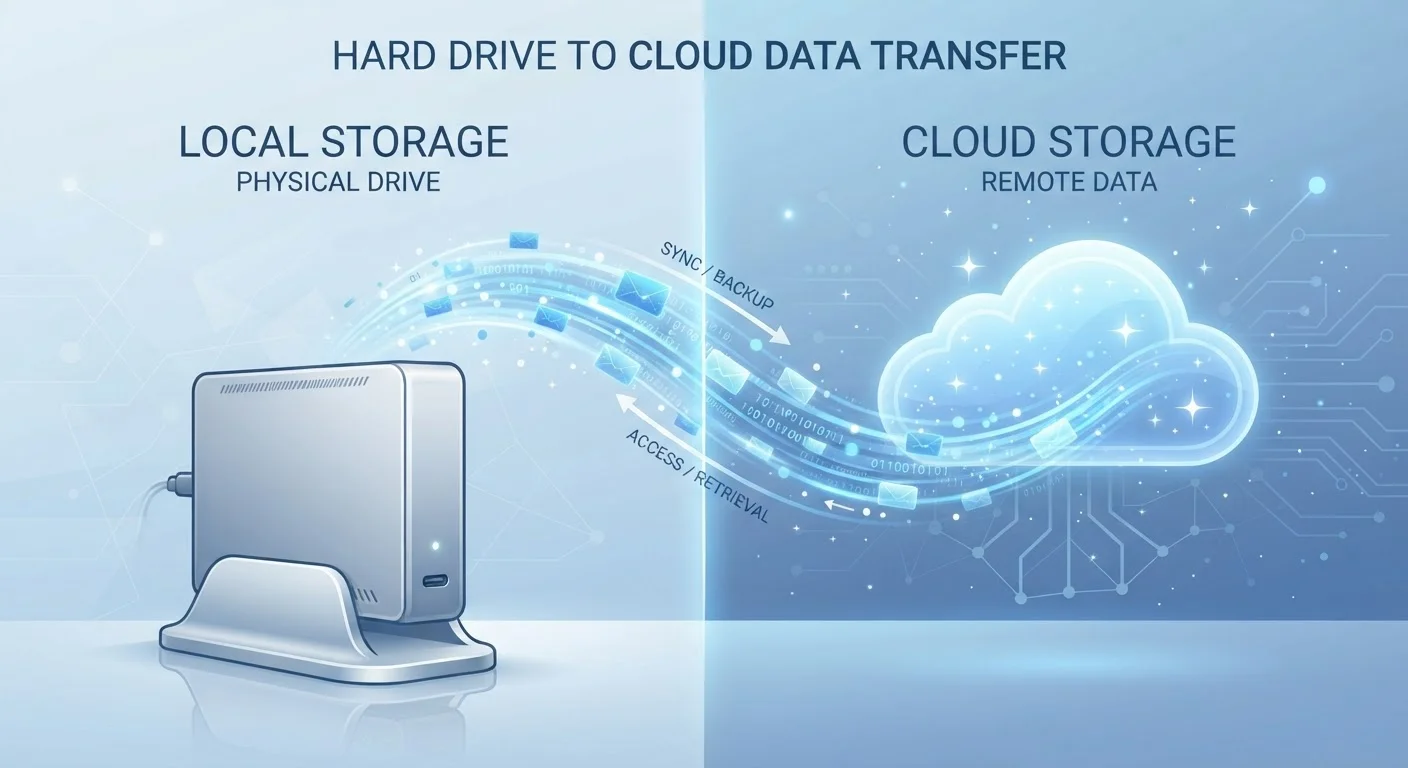
Option A
Local Storage
Data that lives directly on your device - always available, no internet required.
Best for: Users who need fast, offline access to files or want full control without ongoing subscription costs.
Option B
Cloud Storage
Data stored on remote servers and accessible from anywhere with an internet connection.
Best for: Users who work across multiple devices, need automatic backups, or want to share files easily.
The Core Difference: On Your Device vs. On a Server
Local storage refers to any data saved directly onto your device's internal memory, a hard drive, an SD card, or an external drive. When you take a photo and it appears instantly in your camera roll, that image is initially written to local storage. No internet connection is involved.
Cloud storage means your data is transmitted over the internet and kept on servers operated by a third-party provider. Services like iCloud, Google Drive, and OneDrive are common examples. When you upload a document to one of these services, a copy travels from your device to a data center - often hundreds of miles away.
The distinction matters because it determines when you can access your data, what happens when your device breaks, and who ultimately controls where your files sit. For a deeper look at how local storage interacts with your device's overall performance, see our guide to phone storage, RAM, and processors.
| Criterion | Local Storage | Cloud Storage |
|---|---|---|
| Internet required | No | Yes (to sync or access remotely) |
| Access across devices | Manual transfer needed | Automatic sync |
| Risk if device is lost | Data may be unrecoverable | Data remains accessible |
| Ongoing cost | None after hardware purchase | Subscription after free tier |
| Data control | Full - stays on your device | Shared with service provider |
| Speed of access | Instant | Depends on internet speed |
| Automatic backup | Not by default | Yes, if enabled |
Why Many Devices Use Both - And How That Gets Confusing
Most modern smartphones and computers don't use one or the other exclusively - they use both, often simultaneously. Your photos app might save images locally and automatically back them up to a cloud service. A document app might keep a working copy on your device while syncing changes to the cloud every few minutes.
This hybrid approach is convenient, but it creates real confusion. Users often don't know whether deleting a file from their device removes it from the cloud too - or vice versa. The answer varies by app and service settings. What happens to your data when you delete an app explores this in detail, including what lingers on remote servers even after you think something is gone.
One practical consequence: when your phone shows a "Storage Full" warning, it's referring specifically to local storage. Cloud backups don't free up space on the device itself. Understanding what "Storage Full" really means on your phone can help you figure out what's actually consuming space and what's safe to clear.
94%
Enterprises using cloud services
According to Flexera's State of the Cloud report, the vast majority of organizations - and many consumers - rely on cloud infrastructure for at least some data storage.
15 GB
Typical free cloud storage tier
Most major cloud providers offer a baseline of free storage, after which monthly subscription fees apply - a threshold many photo-heavy users reach faster than expected.
Security, Privacy, and What You Actually Control
A common misconception is that one option is simply "safer" than the other. In practice, each carries distinct risks.
Local storage risks: If your device is lost, stolen, or physically damaged, locally stored data can be permanently gone unless you have a backup. Devices are also vulnerable to hardware failure over time.
Cloud storage risks: Your data is transmitted over the internet and stored on servers managed by someone else. That creates exposure to account compromise (if your password is weak or reused), the service provider's own security practices, and, in theory, access by third parties under certain legal conditions. Reading a service's privacy policy - while rarely enjoyable - tells you what the provider can and cannot do with your data.
For most everyday consumers, the practical risk of device failure is higher than the risk of a cloud breach, which is why most security guidance recommends maintaining at least one off-device copy of important files. That said, sensitive documents warrant extra thought about where they live and who has access.
If digital clutter is contributing to storage headaches on your device, this overview of digital clutter explains how unused files and forgotten apps quietly accumulate and what to do about them.
The 3-2-1 Backup Rule - A Useful Framework
Data professionals often reference the 3-2-1 rule as a resilience guideline: keep three copies of important data, on two different media types, with one stored off-site (such as in the cloud). This isn't a guarantee against data loss, but it dramatically reduces the chance that a single failure - a crashed drive, a stolen laptop, a corrupted file - wipes out everything. For everyday consumers, even a simplified version (one local copy, one cloud backup) is meaningfully better than relying on a single location.
The content on this site is provided for informational purposes only and should not be considered a substitute for professional advice. While we strive to provide accurate and up-to-date information, we make no guarantees regarding its completeness or accuracy. Always consult a qualified professional for advice specific to your circumstances before making any decisions.