

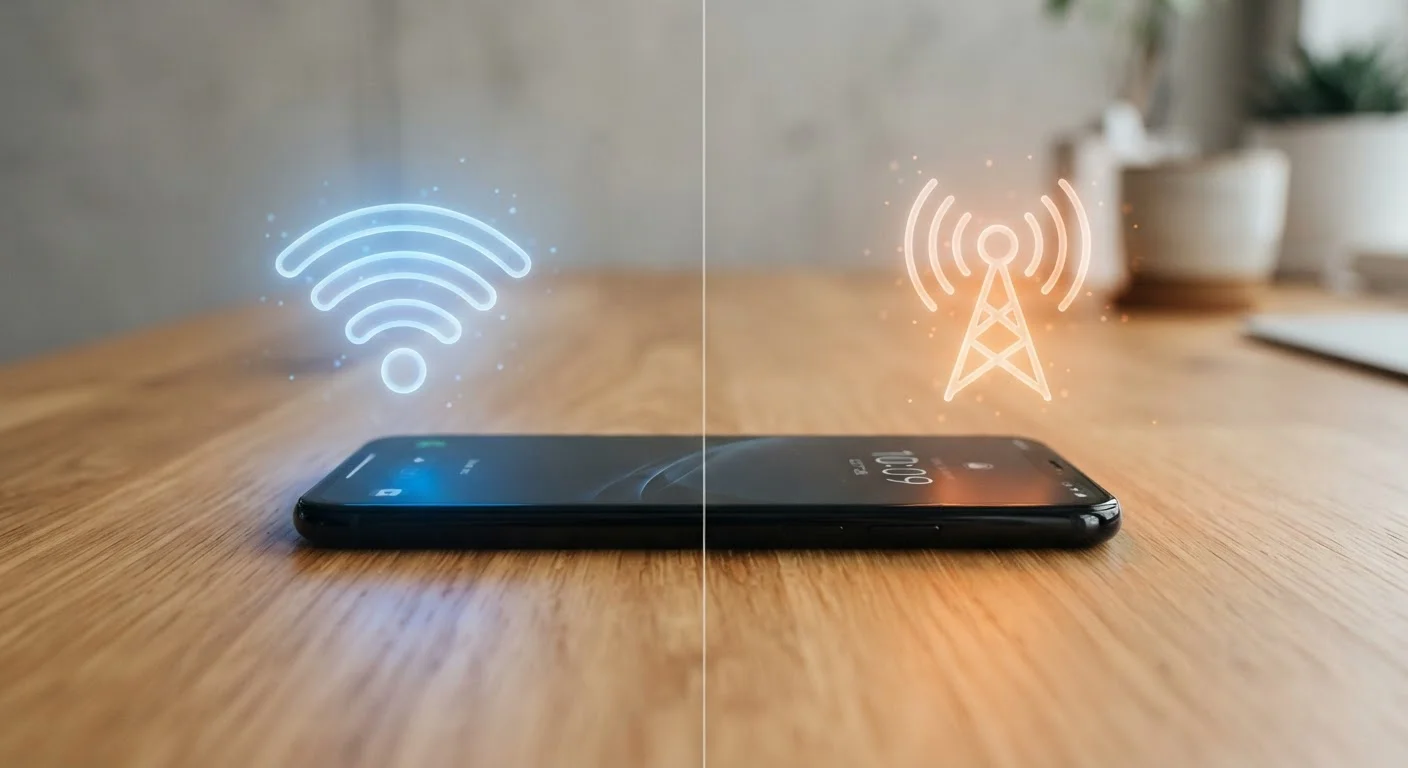
Option A
Wi-Fi
The home-base connection that saves your data allowance.
Best for: Streaming, downloading, and heavy data use at home, work, or any trusted network.
Option B
Mobile Data
The always-available fallback that follows you everywhere.
Best for: Staying connected on the go when no trusted Wi-Fi network is available.
How Your Phone Actually Decides Which Connection to Use
Most people assume their phone is always on Wi-Fi when they're home or at work - but the reality is more nuanced. Your phone follows a straightforward priority rule: if a saved Wi-Fi network is detected, it connects to it automatically and routes most of your internet traffic through that network. Mobile data stays in the background, ready to step in.
The key word is saved. Your phone won't jump onto any available Wi-Fi signal - only networks you've previously joined and stored credentials for. That's why your phone might show a Wi-Fi icon at a coffee shop you visited once, but use mobile data entirely in an unfamiliar hotel.
One important caveat: being connected to Wi-Fi doesn't guarantee all traffic goes through it. Some apps and operating system features - like carrier-related background tasks - may continue using mobile data regardless. And if your Wi-Fi signal is weak, your phone may quietly start splitting traffic between both connections. For a broader look at how different wireless technologies interact on your device, see how Bluetooth, Wi-Fi, and NFC each work.
The Hidden Switching Behavior Most People Don't Notice
Both Apple and Android devices include features designed to give you a seamless experience - but these can quietly shift you off Wi-Fi without any visible alert.
Wi-Fi Assist (iOS): When your iPhone detects that a Wi-Fi connection is too weak to be useful, it automatically supplements or replaces that connection with mobile data. This happens in the background. It's enabled by default on most iPhones.
Adaptive Connectivity (Android): Depending on your device and Android version, similar behavior exists under settings related to network switching or adaptive Wi-Fi. The phone judges which connection will give you a better experience and may switch without a notification.
These features are genuinely helpful most of the time - but they matter for anyone on a limited data plan. If you're sitting in a room with a weak Wi-Fi signal, your phone may be burning through mobile data while the Wi-Fi icon still shows in your status bar.
| Criterion | Wi-Fi | Mobile Data |
|---|---|---|
| Primary use case | Home, office, trusted networks | On the go, away from saved networks |
| Impact on wireless plan | No cellular data consumed | Counts against monthly data allowance |
| Typical speed consistency | Varies by router and distance | Varies by carrier signal and congestion |
| Public network security risk | Higher on open/public networks | Lower - uses carrier encryption |
| Auto-switching behavior | Phone prefers Wi-Fi when a saved network is near | Takes over when Wi-Fi is absent or too weak |
| Coverage area | Limited to router range | Anywhere with carrier signal |
| Silent background switching | Can be overridden by weak signal | May activate without notification |
To check whether these settings are active on your device, look in Settings > Cellular (iOS) or Settings > Network & Internet (Android) and search for Wi-Fi or network switching options.
Why This Matters for Your Wireless Bill
The practical consequence of unintended switching is data overages or hitting your plan's deprioritization threshold earlier in the billing cycle than expected. Deprioritization - where your carrier temporarily slows your speeds during network congestion - is triggered by data usage, not the number of connections you've made. If your phone was unknowingly burning mobile data all week, you may hit that threshold sooner than you planned.
~3 GB/hr
Mobile data used streaming HD video
General estimates from carrier and streaming provider documentation suggest HD video can consume 3 GB or more per hour of playback.
~1 GB/hr
Mobile data used streaming SD video
Standard-definition video streaming typically uses approximately 1 GB per hour, according to commonly cited carrier usage guidelines.
Default: On
Wi-Fi Assist enabled on new iPhones
Apple enables Wi-Fi Assist by default on iPhones, meaning the device will use mobile data when Wi-Fi quality drops below a usable threshold.
Streaming video is the biggest culprit. Standard-definition video can use roughly 1 GB per hour; high-definition streaming can use 3 GB or more per hour. A single evening of unnoticed mobile data use can make a measurable dent in a mid-tier plan.
If you're trying to decode exactly what your plan's data terms actually mean - including deprioritization language - reading your plan's fine print carefully is a useful next step. And if your bill ever looks higher than expected, a line-by-line bill breakdown can help you trace where the charges came from.
Security: The Dimension Most Connection-Switching Ignores
Speed and data usage aren't the only things at stake when your phone picks a connection. Public Wi-Fi networks - in airports, hotels, cafes, and libraries - save your mobile data, but they also introduce exposure that a cellular connection typically doesn't.
On a public Wi-Fi network, other users on the same network may be able to intercept unencrypted traffic. While modern HTTPS encryption protects most web sessions, not every app or service applies that protection consistently. Mobile data, by contrast, is transmitted through your carrier's infrastructure, which includes its own encryption layers.
For sensitive tasks - banking, account logins, anything involving personal or financial information - mobile data is the more conservative choice when you're away from a trusted network. For a fuller picture of what's actually at risk on public networks, see why public Wi-Fi carries more risk than it appears.
At home, a properly secured private Wi-Fi network doesn't carry those same risks - making it the right choice for both data savings and security in that context. If your home Wi-Fi coverage is inconsistent, that problem is usually solvable without changing your internet plan; improving coverage throughout your home covers practical options.
The content on this site is provided for informational purposes only and should not be considered a substitute for professional advice. While we strive to provide accurate and up-to-date information, we make no guarantees regarding its completeness or accuracy. Always consult a qualified professional for advice specific to your circumstances before making any decisions.