

What Data Does Your Smart TV Actually Collect?
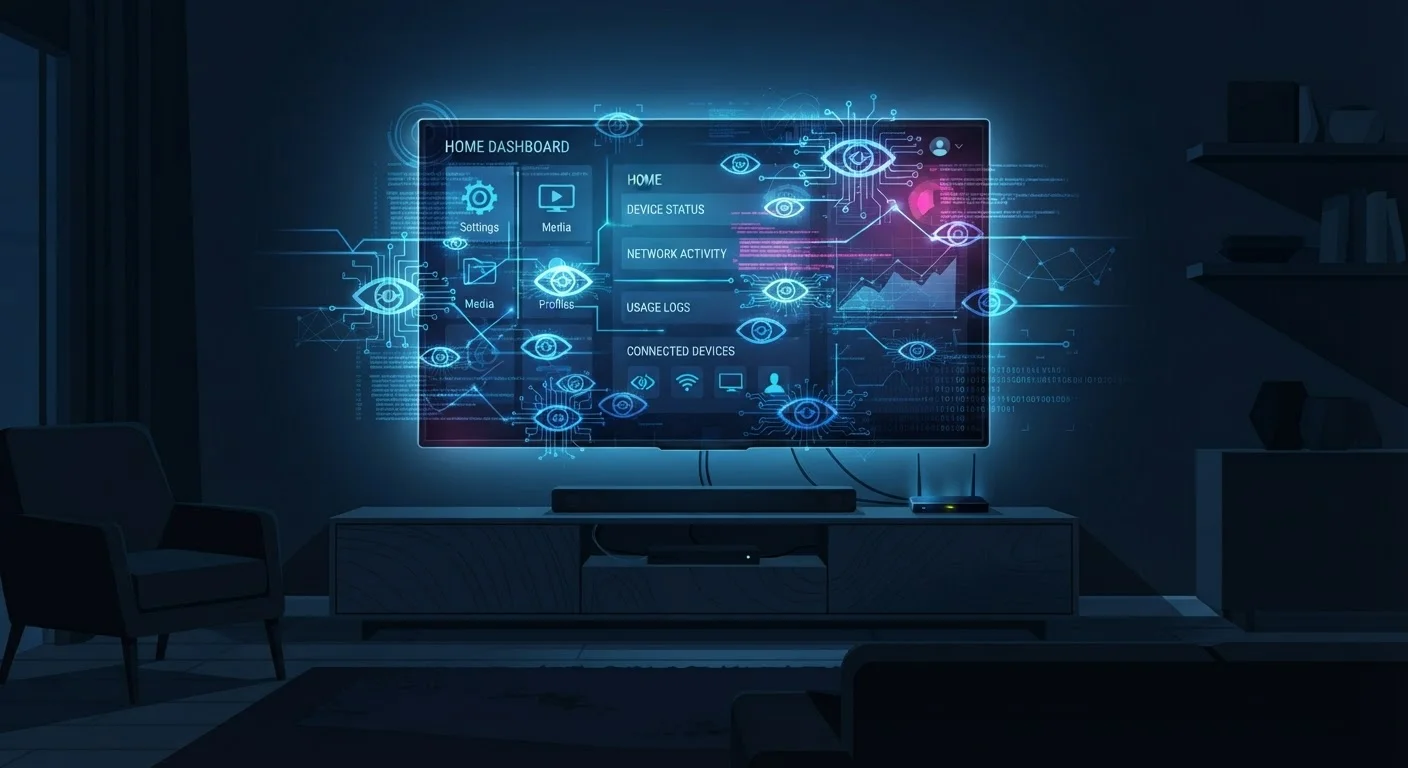
Smart TVs are internet-connected computers running a full operating system, and like most connected devices, they generate and transmit data. The most consequential form of collection is Automatic Content Recognition (ACR) - a technology that samples your screen at regular intervals, fingerprints what's playing, and reports it back to the manufacturer or a third-party data partner. ACR works regardless of the source: a streaming app, a cable box connected via HDMI, or even a gaming console.
Beyond ACR, smart TVs typically collect:
- App usage data - which apps you open, for how long, and in what order
- Search queries typed into the TV's search bar
- Advertising identifiers - unique device IDs used to build ad profiles
- Device diagnostics - crash logs, hardware performance metrics, and firmware version
Manufacturers use this data to target advertising on their free, ad-supported streaming channels and may license it to third-party data brokers. This is a primary revenue stream for many TV brands, which is one reason sets have become cheaper - the hardware is partly subsidized by data revenue. For further context on how connected devices handle data in your home, see our piece on smart speakers and always-on listening.
Use a Streaming Stick for More Control
If your TV's built-in platform offers limited privacy controls, plugging in a separate streaming device - and leaving the TV's own smart features unused - can give you more granular control over data settings. The TV still collects some data from what its screen displays, but ACR typically requires the TV's own software to function.
Step-by-Step: Limiting Data Collection on Your Smart TV
You won't be able to stop all data collection - some diagnostics are tied to core operating system functions - but you can significantly reduce what your TV transmits by adjusting a handful of settings. The steps below cover the most impactful controls available on most major smart TV platforms.
What you will need
Smart TV Remote
Required to navigate privacy and settings menus on your television.
TV Manufacturer's Privacy Policy Page
Needed to submit a data deletion request or review what data is stored.
Locate Your TV's Privacy or Data Settings Menu
Open your TV's main Settings menu using the remote. Look for a section labeled Privacy, Data & Privacy, or Terms & Privacy - the exact label varies by brand. On many platforms, this is nested under General or System settings. If you can't find it, use the Settings search bar (where available) and type "privacy" or "ACR."
Disable Automatic Content Recognition (ACR)
Automatic Content Recognition (ACR) is the core tracking technology built into most smart TVs. It works by periodically capturing a fingerprint of what's on your screen - whether that's a streaming app, a cable channel, or a Blu-ray - and matching it against a database to identify exactly what you're watching. Find the ACR or "Viewing Data" toggle in the privacy menu and switch it Off.
- Samsung: Settings > Terms & Privacy > Viewing Information Services
- LG: Settings > All Settings > General > Live Plus
- Vizio: Settings > System > Reset & Admin > Viewing Data
- Roku TVs: Settings > Privacy > Smart TV Experience > Use Info from TV Inputs
Opt Out of Interest-Based or Targeted Advertising
Separate from ACR, most smart TV platforms also serve targeted ads - particularly on free, ad-supported streaming channels built into the TV. These ads are targeted using your viewing data and a unique advertising identifier assigned to your device. In your privacy settings, find the option to limit ad tracking, opt out of interest-based ads, or reset your advertising ID, and enable it.
Review App-Level Privacy Settings
Streaming apps installed on your TV - such as Netflix, Hulu, or free ad-supported platforms - may have their own separate data collection settings independent of your TV's system settings. Open each app, navigate to its own Account or Settings menu, and look for privacy or data-sharing options. These are governed by each app's own privacy policy, not your TV manufacturer's.
Consider Whether to Keep Your TV Connected to Wi-Fi
Data collection on smart TVs requires an active internet connection. If you use your TV primarily as a display for a separate streaming device (such as a dedicated media player or a gaming console) and don't rely on its built-in apps, disconnecting it from your home Wi-Fi network stops most data transmission at the source. You'll lose access to built-in streaming apps and software updates, so this is a trade-off worth thinking through carefully.
Opting Out Doesn't Delete Past Data
Turning off tracking features stops future collection but does not automatically erase data already gathered about your household. Each manufacturer has a separate data deletion request process, typically found in their privacy policy. If erasing historical data matters to you, check your TV brand's privacy policy directly for deletion instructions.
Settings Reset After Software Updates
Some smart TV manufacturers have been reported to reset privacy settings after major firmware updates. After any significant system update, revisit your privacy and data settings to confirm your choices are still in effect. This takes only a minute and protects against unexpected reversions.
Once you've adjusted these settings, your TV will still function normally for streaming. You may notice slightly less personalized recommendations, but core playback features are unaffected. If you're also thinking about how streaming activity affects your internet usage more broadly, our guide on how data caps work is a useful companion read.
The content on this site is provided for informational purposes only and should not be considered a substitute for professional advice. While we strive to provide accurate and up-to-date information, we make no guarantees regarding its completeness or accuracy. Always consult a qualified professional for advice specific to your circumstances before making any decisions.