

Start here
What Two-Factor Authentication Actually Is
Understand the why
Why Your Password Alone Isn't Enough
Learn your options
The Different Types of 2FA
Take action
How to Turn On 2FA: A General Walkthrough
Troubleshoot
Common Concerns and What to Do About Them
What Two-Factor Authentication Actually Is
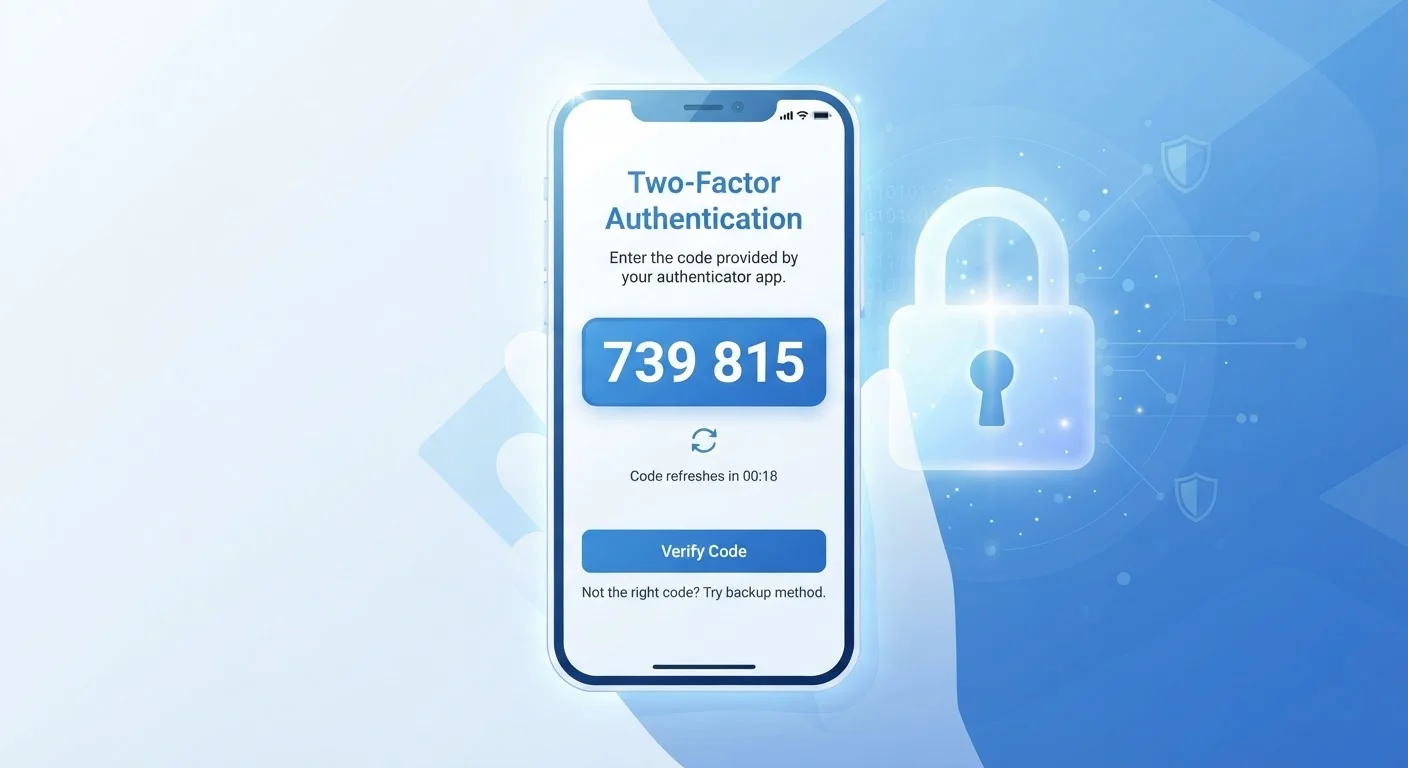
Two-factor authentication - often shortened to 2FA - is a security setting that requires you to confirm your identity in two separate ways before gaining access to an account. Think of it like a door that needs both a key and a fingerprint: having just one isn't enough.
The two "factors" typically combine something you know (your password) with something you have (a code sent to your phone or generated by an app). This means that even if someone steals your password, they still can't get in without that second piece of proof.
Two-factor authentication (2FA)
A login process that requires two separate proofs of identity - typically a password plus a one-time code - before granting account access.
Authenticator app
A smartphone app that generates short-lived numeric codes used as a second login factor, without relying on SMS or cellular service.
SIM swapping
A scam where a criminal convinces a mobile carrier to transfer your phone number to their device, allowing them to intercept text-based verification codes.
Backup codes
A set of one-time-use codes provided when you set up 2FA, intended for account recovery if you lose access to your primary second-factor method.
Hardware security key
A small physical device - typically USB or NFC - that acts as a second login factor when plugged in or tapped, offering very strong account protection.
Why Your Password Alone Isn't Enough
Passwords are compromised more often than most people realize. Data breaches expose millions of login credentials every year, and many passwords end up circulating in underground markets. If you've ever reused the same password across multiple sites - a habit most people have - one leaked account can unlock several others.
A strong, unique password helps, and pairing 2FA with a good password manager is a powerful combination. But even the most complex password is a single barrier. Two-factor authentication turns a one-lock door into a two-lock door - and that second lock stops the vast majority of automated attacks cold.
Start With Your Email Account
Your email account is often the master key to everything else - it's used to reset passwords for banking, shopping, and social media. If you only enable 2FA on one account today, make it your primary email. The few minutes it takes can prevent a chain reaction of compromised accounts.
The Different Types of 2FA
Not all two-factor authentication works the same way. Here are the most common forms you'll encounter:
- SMS text codes: A one-time code is sent to your phone number. Easy to set up, but vulnerable if someone manages to redirect your phone number - a scam known as SIM swapping.
- Authenticator apps: Apps like those provided by major tech platforms generate time-sensitive codes directly on your device. They don't rely on your cellular carrier, making them more resistant to SIM-based attacks.
- Push notifications: Some services send an approval prompt to a trusted device. You simply tap "Approve" to confirm the login.
- Hardware security keys: A small physical device you plug in or tap. Considered the most secure option, commonly used by people with high-risk accounts.
For most everyday accounts, an authenticator app strikes a practical balance of security and convenience. SMS is a reasonable starting point if an app isn't available or feels like too much to set up at once.
How to Turn On 2FA: A General Walkthrough
The exact steps vary by platform, but the general process is consistent across most services:
- Log into your account and navigate to Settings or Account.
- Look for a section labeled Security, Privacy, or Sign-In Options.
- Find the two-factor authentication or two-step verification option and select it.
- Choose your preferred method - SMS, authenticator app, or another option shown.
- Follow the on-screen prompts to verify the setup works.
- Save your backup codes somewhere secure, such as printed and stored in a safe place.
Start with your most critical accounts: your primary email address (which is often the key to resetting every other account), your bank or financial apps, and any social media accounts. From there, work through other accounts at your own pace.
Backup Codes Are Non-Negotiable
Every service that offers 2FA also provides backup codes during setup - typically a list of 8-10 one-time-use codes. Do not skip this step. Store them somewhere you can access without your phone: printed and kept somewhere safe, or in a secure note stored offline. These codes are your safety net if your primary 2FA method becomes unavailable.
Common Concerns and What to Do About Them
Many people hesitate to turn on 2FA because it sounds complicated or they worry about getting locked out. Both concerns are understandable - and manageable.
"It'll slow me down." Most platforms only ask for a second factor on new devices or after a set period. Once your device is recognized, day-to-day logins stay quick.
"What if I lose my phone?" This is the most important reason to save your backup codes during setup. Most services also offer account recovery through a verified email address or by contacting support with proof of identity.
"I'm not a target." Automated attacks don't discriminate - they scan millions of leaked credentials and try them everywhere. You don't need to be prominent to be affected. Two-factor authentication is a baseline protection, not just something for high-profile users.
If you're building out your account security more broadly, pairing 2FA with a dedicated password manager means you're covering both the password and verification sides of account security.
Frequently Asked Questions
Most services provide backup codes when you set up 2FA - save these somewhere safe offline. You can also use account recovery options like a trusted email address or identity verification to regain access.
SMS-based 2FA is significantly better than no 2FA at all. However, it carries some risk from SIM-swapping attacks. Where possible, an authenticator app is considered more secure than SMS codes.
Prioritize accounts with the most sensitive data first: email, banking, and social media. Once you're comfortable, expanding 2FA to other accounts is worthwhile and takes very little time.
No security measure is completely foolproof, but 2FA dramatically raises the difficulty for attackers. Phishing remains a risk, so always verify you're on a legitimate site before entering any code.
Authenticator apps generate codes locally on your device and do not require an internet connection. SMS codes require a cellular signal, and hardware keys work offline by design.
The content on this site is provided for informational purposes only and should not be considered a substitute for professional advice. While we strive to provide accurate and up-to-date information, we make no guarantees regarding its completeness or accuracy. Always consult a qualified professional for advice specific to your circumstances before making any decisions.